Jim Rossman: Hidden phone setting turns sister’s screen into a ‘photo negative’
Published in Science & Technology News
My family is a great resource for my column topics.
Usually, I write about an issue brought to my attention by my mom or my mother-in-law, but this week it was my sister who called with a phone problem.
We’d talked earlier in the week and she told me her phone screen looked strange: the background was black and the text was white in some of her apps, like Messages.
To me, this sounded like her phone had switched into dark mode, which inverts the text and background colors, as she described. I had to get off the phone, so I told her how to check the setting and to reboot her phone and let me know if the problem persisted.
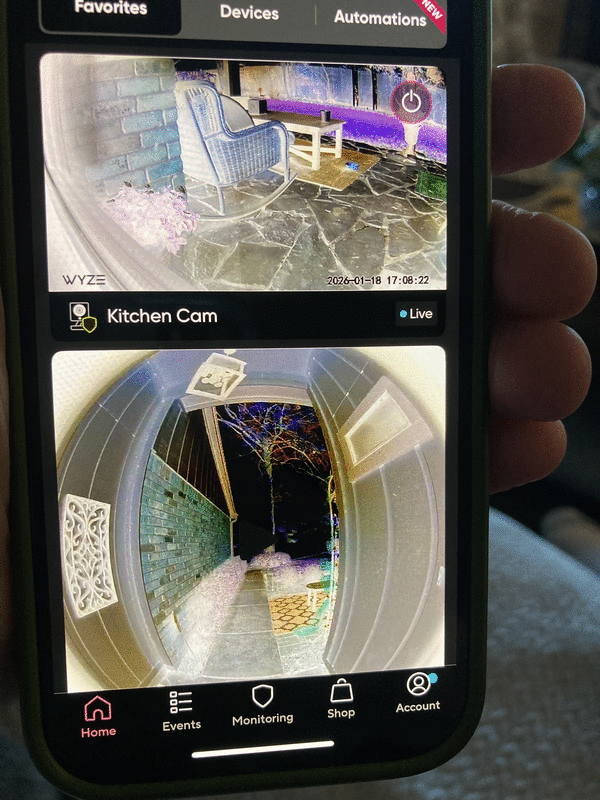
She didn’t call me back that night, so I thought her problem was fixed. But when I talked to her later in the week, she mentioned it was still happening, and that in some apps, photos and videos looked like a negative image, where all the colors were inverted. She sent along a screen shot of her Wyze app and sure enough, the thumbnail images were reversed.
This is something I’ve seen before. It is an Accessibility setting, but it was usually set that way on purpose.
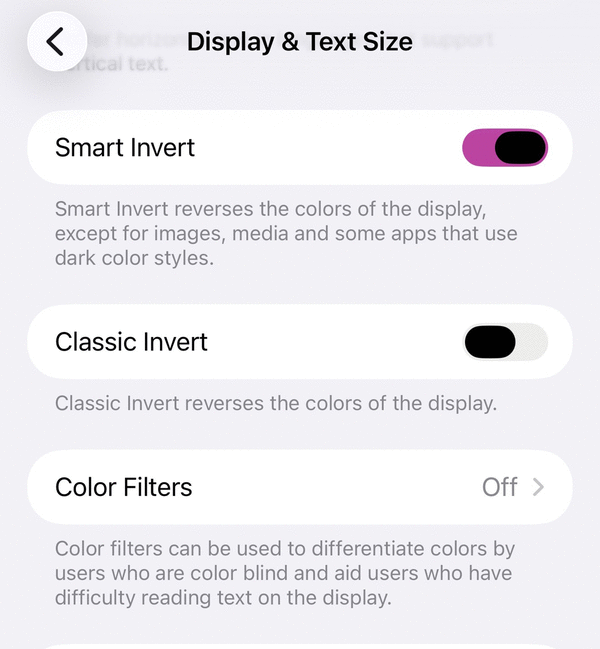
I told her to open her phone’s settings and then open Accessibility and then open Display & Text Size setting.
I asked her to tell me if any setting on that page was turned on, and she told me Smart Invert was turned on. I was hoping that was the case.
Smart Invert reverses the colors of the display except for images, media and some apps that use dark color styles.
Turning off Smart Invert fixed my sister’s issues, but I was at a loss to tell her how that setting had turned itself on.
The iOS operating system does let a user set up an “accessibility shortcut” that will turn on or off one of the accessibility settings by triple-clicking the sleep/wake button. I suppose it is possible smart invert was set to activate with a triple click and that she’d never triple clicked before.
I showed her how to check the setting if the problem should ever come back.
This is a good time to mention iOS and Android both have a plethora of accessibility settings for people who need assistance with vision (text magnification or better contrast) or hearing issues (live captions) or who need assistance using the touch screen accurately or some other issues.
If you haven’t looked through your phone’s accessibility settings, I recommend it. Familiarize yourself with what’s available, even if you don’t have a current need. It might help you or a family member in the future.
©2026 Tribune Content Agency, LLC.






Comments