Tech review: Anker dock makes quick work of connecting your peripherals
Published in Science & Technology News
My first computer was a Macintosh Plus, which was an all-in-one computer with a built-in black and white monitor.
Then I moved up to an actual desktop PC, with a separate color monitor.
Back then, laptops were expensive and not very small, and they used slower components and were not very expandable.
In the last decade, laptops pulled even with desktops and at my office, we’ve begun giving our users a laptop as their only computer.
We outfit our users two monitors and a wireless keyboard and mouse, along with a variety of other peripherals including scanners and printers.
If you carry your laptop home each night, you’ll soon tire of disconnecting and reconnecting all your peripherals. In that case, what you need is a good desktop docking station, which is a box with ports for all your peripherals and just one cable that connects it all to your laptop.
I’ve been testing the new Anker Prime Docking Station DL7400 (14-in-1, Triple Display, DisplayLink) for a month and I’m impressed.
I’ve used more than a few docks, and this is the first one that has a display to show you what’s going on and lets you change some settings.
Specs
The DL7400 ($299.99, anker.com or Amazon) can connect up to three monitors, including one 8K display and two 4K displays through two HDMI ports (4K@60Hz0 and one DisplayPort (8K@60Hz).
Ports on the back include two USB-A (5Gbps) and one USB-A (480Mbps) and one 2.5Gbps Ethernet port.
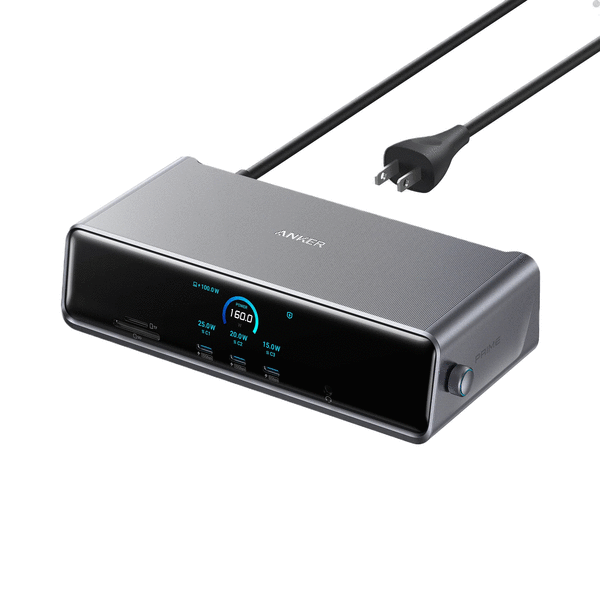
On the front you’ll find three very conveniently placed USB-C ports. All three can provide up to 100W max, but charging through all the ports is capped at 160W.
Two of those ports can transfer data at 10Gbps and one at 5Gbps. The USB-C ports are for charging and data transfer only — they can’t output video to a monitor.
The front also has SD and TF memory card slots and a headphone jack.
All of these ports connect back to your computer with a single USB-C cable.
Displays
There’s one caveat with the DL7400 — to enable the display output, you’ll need to install the DisplayLink driver for your computer. This software is mandatory if you want to connect monitors. The driver is an EXE file, so if you have a corporate computer and don’t have the rights to install software, you’ll need to make arrangements with your IT department to help you with the installation.
Management
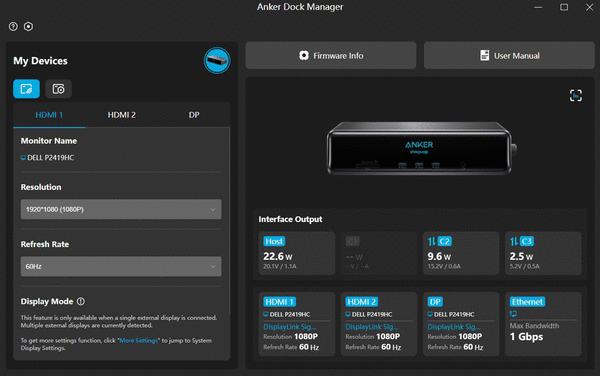
This is the first dock I’ve used that has its own management app, called Anker Dock Manager, which shows you all the information about the operation of the dock and absolutely all statistics and status of devices connected to every port.
You can also use the software to upgrade the dock’s firmware.
The DL7400 has an internal fan to keep the insides cool. You can see the fan status on the screen.
Design
This is a great looking dock. The 2.25-inch display can show you info on the connected devices and it can go into screensaver mode to show you the time and date.
You move through the on-screen menus with a small dial. Turn the dial either way to scroll and press it into select.
I’m used to docks being just plastic boxes full of ports that you can keep tucked under your desk or behind a monitor.
The DL7400 is designed to be front and center on your desk. The three USB-C ports on the front are perfect for charging your gadgets or connecting flash drives.
A dock is something that (hopefully) you’ll set up once and forget it. If it doesn’t give you any trouble, it’s doing a great job.
But the DL7400 is changing my desk. Now I get to take some time to rearrange the wires on my desk so the dock can sit within arm's reach.
Worth it?
Who should be using the DL7400?
If you have multiple monitors, you want this dock. It has great support for up to three 4K displays. Most of the people I support at work have two monitors, if not more, and the USB-C ports on the front are very convenient.
I have a desk full of monitors and peripherals, and the DL7400 makes quick work hooking up or disconnecting my laptop each day.
©2025 Tribune Content Agency, LLC.






Comments